
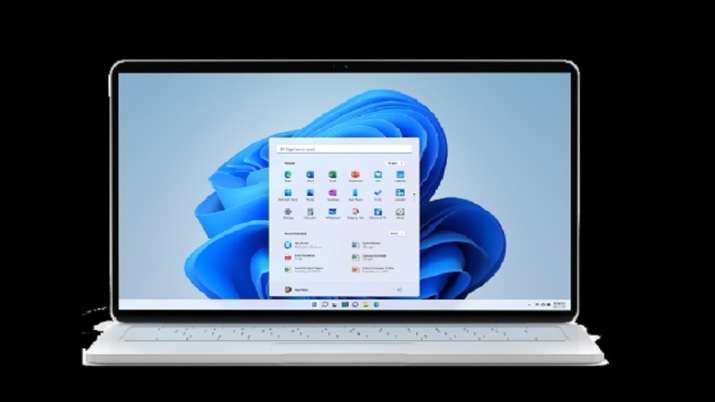

Microsoft Windows 11
Microsoft has rolled out its preview of the new Windows 11 controller shortcut. The new shortcut is named “controller bar” and once the Xbox button is pressed on the controller, it will provide a preview of the Xbox game bar.
The new shortcut allows the user to get user-friendly access to games that have been played easily and helps to launch the game smoothly.
Everything you need to know about Windows 11 controller shortcuts and steps to use them:
- User must have Windows Insider, running on Insider Preview Build (Build 225xx)
- Open the Microsoft store and download Xbox Insider Hub
- Open the Xbox Insider Hub and sign in with your Microsoft account. Please note that if the user is not in an Xbox Insider, it will additionally ask the user to join
- Once logged in, the user will need to navigate to “Previews”
- Then the user will need to join the Windows Gaming preview
- Users should check for updates in the Microsoft Store and ensure they have the latest version of Xbox Game Bar (starting with version 5.722.5022.0).
- Users will need to restart their PC as this is the important step to proceed with the game bar update
- Then the user will need to pair or plug the controller accordingly
The Windows 11 Xbox controller bar can be accessed by plugging the controller into your PC or gaming laptop. After that, the user will have to press the Xbox button which is placed at the top center of the controller. Once the button is pressed, the bar will appear and show the user’s most recently played games and installed game launchers like Steam, EA Access, and the Xbox app.

Comments are closed.