

Microsoft released Windows Package Manager 1.1 earlier this month. The new version of the package manager, known as winget by its users, is available for Windows 10 version 1809 and newer, and for Windows 11. The big news with the release is that Microsoft has added its own Microsoft Store as source to Windows Package Manager.
Until now, users had a single source of selected Windows programs when using the default Windows Package Manager functionality. Now it’s that list plus everything in the Microsoft Store.
A year ago, a feature that would add Microsoft Store as a source wouldn’t have garnered much excitement from users. Now, with Microsoft Store accepting Win32 programs alongside UWP apps, this can very well be seen as a nice improvement, at least by users and admins who don’t object to using the Microsoft Store at all.
Windows Package Manager 1.0 was released in May 2021. Microsoft announced in June 2021 that it would tighten submission rules.
Windows 1.1 Package Manager and Microsoft Store
With Windows Package Manager 1.1 installed, Windows users can find, install, and upgrade apps from the Microsoft Store.
- The first thing you need to do is open a command prompt window. Open Start, type cmd and select the result to open a command prompt window. You can also open an elevated Command Prompt window; if you do, you won’t get elevation prompts if applications require it.
- Run the winget –version command to see if you get a returned version.
- If you get version 1.1.12653 or higher, you’re good to go.
- If you get an older version, you need to update it. You can update it from the Microsoft Store, it is part of App Installer, if you are an Insider, or by downloading it following the instructions under 3).
- If you get an error, you need to install Windows Package Manager on the system before you can use it. It is available on the Microsoft Store or as a direct download from the GitHub repository of the project.
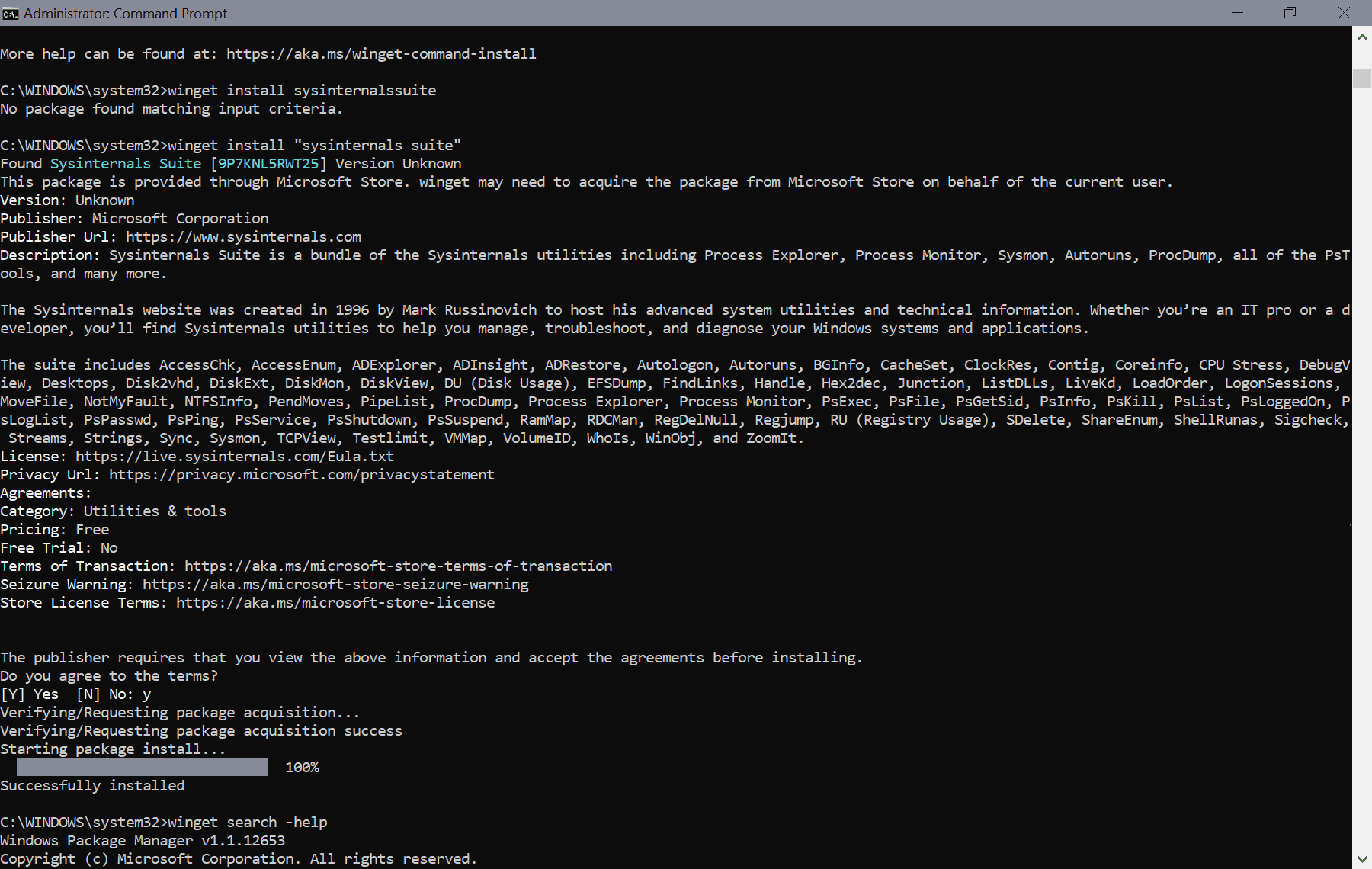
- Run the winget search sysinternals command to find any results that match the search term. You can replace “sysinternals” with any other search term, but for the purposes of this tutorial, let’s assume you want to install the Sysinternals tool suite from Microsoft Store using winget.
- Windows Package Manager returns all matching apps found in the community list or Microsoft Store.
- The main installation command is winget install NAME/ID. You can use the package name or ID to install, uninstall, or upgrade.
- Run winget install “sysinternals suite” to install the Microsoft Store version. Note that you must use “..” if the name has a space or multiple spaces.
- Run winget install 9P7KNL5RWT25 to install it as well.
- Accept the deal.
The application is then automatically installed and ready to use once installed on the device.
The following commands may be useful to you:
- To find out if a program is available on the Microsoft Store: winget search for “Program name” -s msstore
- Show all sources: list of winget sources
- To remove a source: winget source remove SOURCENAME, for example winget source remove msstore
- To update all applications: winget upgrade –all
Closing words
It may be faster to install, uninstall, or upgrade apps using winget than using Microsoft Store or the Settings app for it.
Windows 10 or 11 users who don’t use the Microsoft Store can remove it as a source and use the Windows Package Manager with the default repository.
Now you: Do you use or do you plan to use Windows Package Manager?
Summary
Article name
How to Use Winget to Install Microsoft Store Apps
The description
Learn how to use Windows Package Manager to install apps from the Microsoft Store.
Author
Martin Brinkman
Editor
Ghacks Technology News
Logo

Advertising

Comments are closed.